
Day 16 : Docker for DevOps Engineers 🐳
"I'm a 3rd-year Computer Engineering student at Marwadi University with skills in C++, web development (MERN stack), and DevOps tools like Kubernetes. I contribute to open-source projects and share tech knowledge on GitHub and LinkedIn. I'm learning cloud technologies and app deployment. As an Internshala Student Partner, I help others find jobs and courses." now currently focusing on #90DaysOfDevops
Docker
Docker is a software platform that allows you to build, test, and deploy applications quickly. Docker packages software into standardized units called containers that have everything the software needs to run, including libraries, system tools, code, and runtime. Using Docker, you can quickly deploy and scale applications into any environment and know your code will run.
Tasks
As you have already installed Docker in previous tasks, now is the time to run Docker commands.
Use the
docker runcommand to start a new container and interact with it through the command line. [Hint:docker run hello-world]Use the
docker inspectcommand to view detailed information about a container or image.Use the
docker portcommand to list the port mappings for a container.Use the
docker statscommand to view resource usage statistics for one or more containers.Use the
docker topcommand to view the processes running inside a container.Use the
docker savecommand to save an image to a tar archive.Use the
docker loadcommand to load an image from a tar archive.
These tasks involve simple operations that can be used to manage images and containers.
What is docker ?
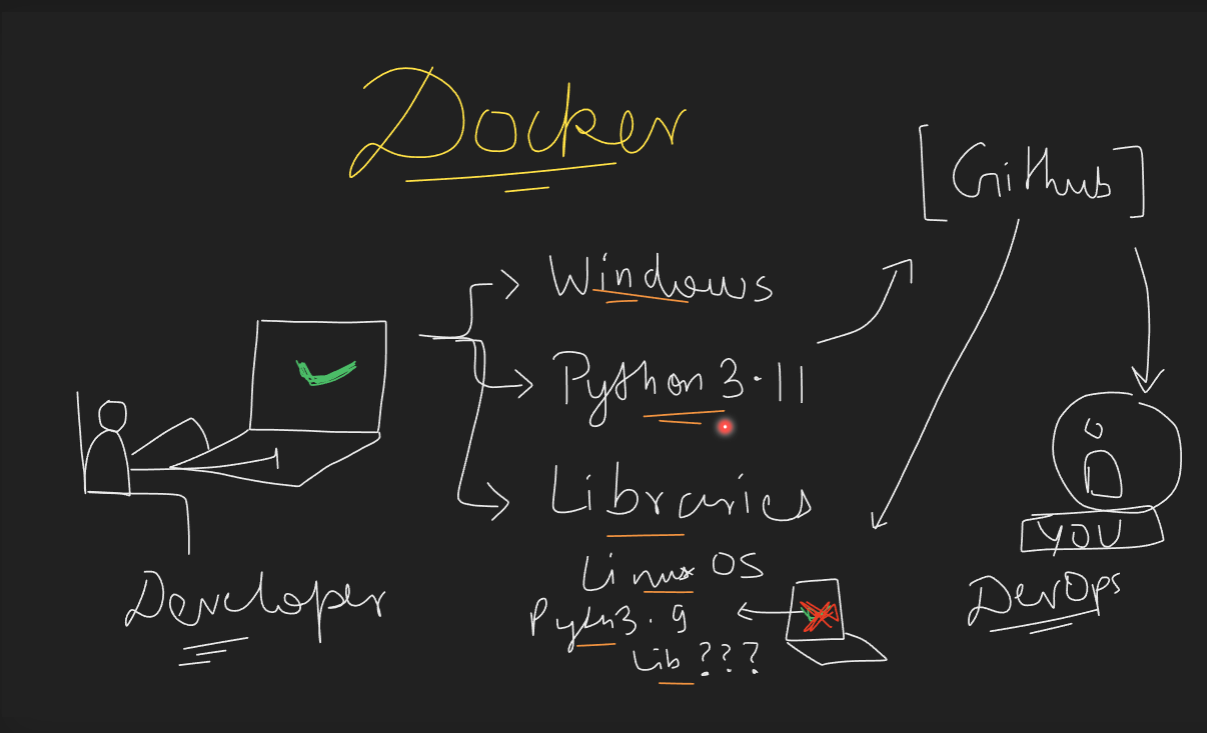
Docker is a tool that helps developers create, deploy, and run applications inside containers. Think of a container as a lightweight, portable box that holds everything an application needs to run, such as code, libraries, and system tools. This ensures that the application works the same way, regardless of where it is run.
Example
Imagine you have a recipe for baking a cake. Normally, you would need to gather all the ingredients and tools (like flour, sugar, eggs, oven, etc.) every time you want to bake. This can be time-consuming and sometimes things might not work out if you miss an ingredient or use a different oven.
Now, think of Docker as a special kitchen box that contains all the ingredients and tools you need to bake the cake. No matter where you take this box, you can always bake the same cake because everything you need is already inside.
In technical terms, here's a simple example:
Dockerfile: This is like your recipe. It contains instructions on how to build your container.
 FROM python:3.8-slim
 COPY . /app
 WORKDIR /app
 RUN pip install -r requirements.txt
 CMD ["python", "app.py"]
Building the Container: You use the Dockerfile to create a container image.
docker build -t my-python-app .Running the Container: You can then run the container anywhere.
docker run -d -p 5000:5000 my-python-app
In this example, the container will run a Python application, and it will work the same way on any computer because everything it needs is inside the container.
How does docker work ?
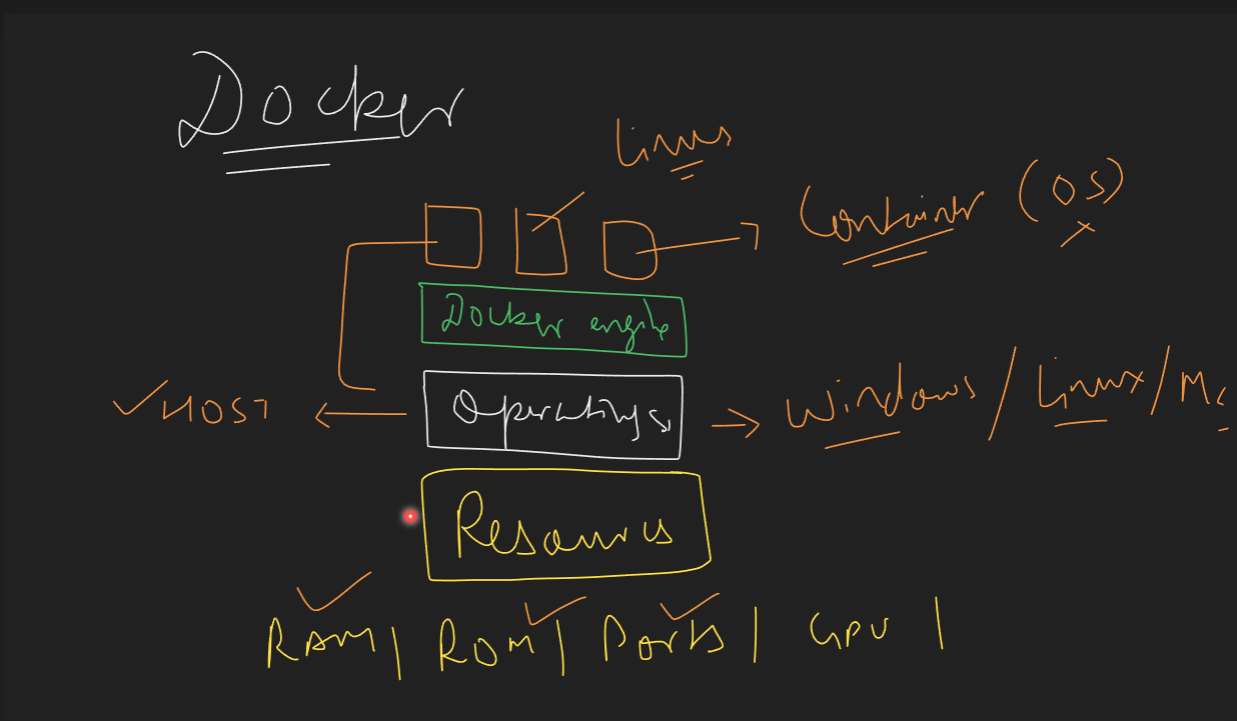
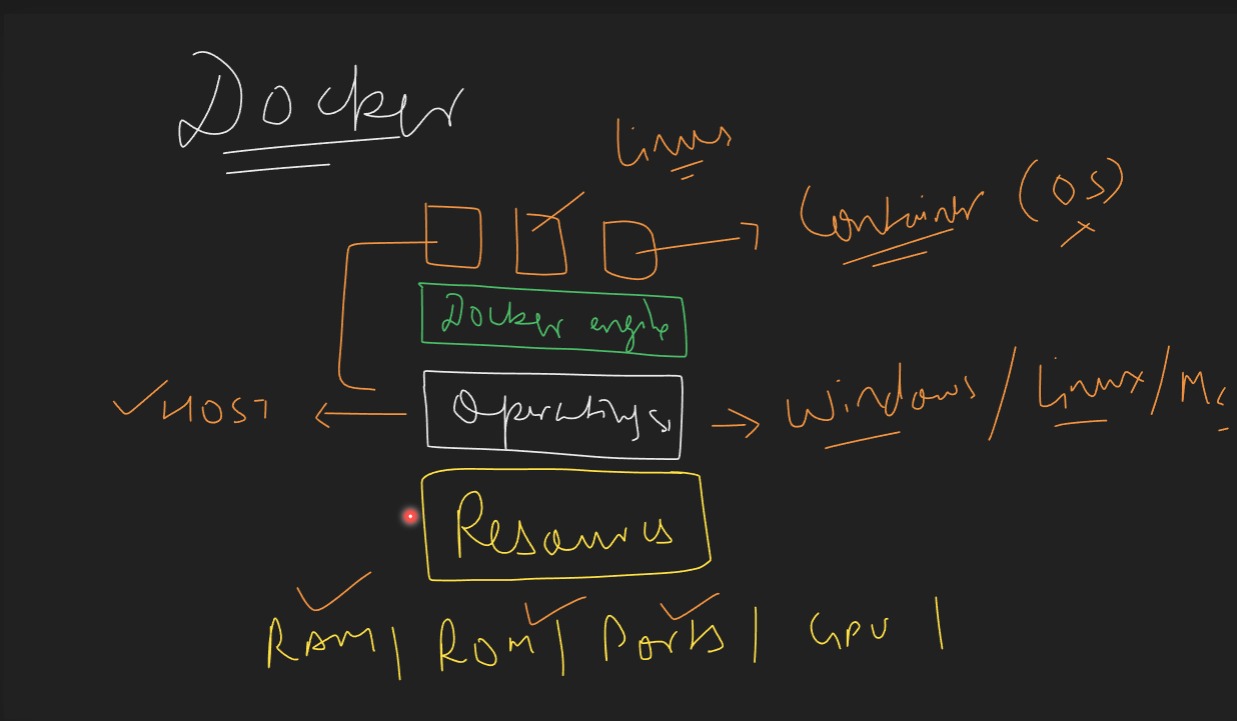
Docker works by leveraging several layers to create and manage containers. Here's an explanation of how Docker operates across different layers:
Resource Layer
This is the physical or virtual hardware that provides the computing resources such as CPU, memory, storage, and network interfaces. These resources are essential for running the operating system and Docker containers.
Operating System Layer
Docker runs on the host operating system, which can be Linux or Windows. The host OS manages the hardware resources and provides the necessary system calls and services that Docker relies on. Docker uses the OS kernel features like namespaces and control groups (cgroups) to isolate and manage resources for containers.
Hypervisor Layer (Optional)
In some setups, Docker can run on virtual machines managed by a hypervisor like VMware, Hyper-V, or KVM. The hypervisor layer abstracts the physical hardware and allows multiple virtual machines to run on a single physical machine. Each VM can run its own instance of Docker.
Docker Engine Layer
The Docker Engine is the core component of Docker. It consists of three main parts:
Docker Daemon (dockerd): This is the background service running on the host OS. It manages Docker objects like images, containers, networks, and volumes.
REST API: This allows programs to interact with the Docker Daemon and instruct it to perform actions.
Docker CLI (Command Line Interface): This is the command-line tool that users interact with to issue commands to the Docker Daemon.
Docker Container Layer
Containers are lightweight, standalone, and executable packages that include everything needed to run a piece of software, including the code, runtime, libraries, and system tools. Each container runs as an isolated process in user space on the host OS, sharing the kernel with other containers. Containers are created from Docker images, which are read-only templates with instructions for creating a Docker container.
How It All Works Together
Resource Layer: Provides the necessary hardware resources.
Operating System Layer: Manages hardware resources and provides the environment for Docker to run.
Hypervisor Layer (if used): Allows Docker to run on virtual machines.
Docker Engine Layer: Manages Docker containers and images.
Docker Container Layer: Runs applications in isolated environments.
By using these layers, Docker ensures that applications are portable, consistent, and can run anywhere, whether on a developer's laptop, on-premises data center, or in the cloud.
Difference Between Using VirtualBox and Docker
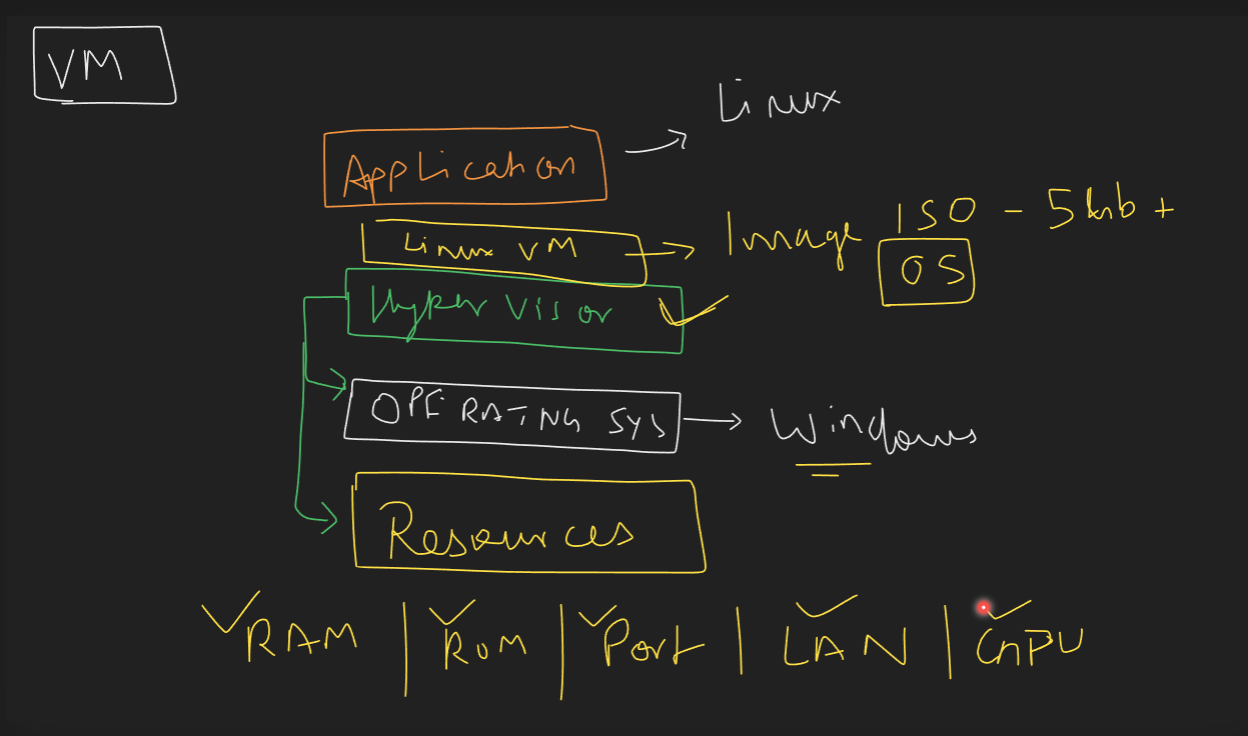
VirtualBox (Virtual Machines)
Resource Usage: Each virtual machine (VM) runs a full operating system, which consumes more CPU, memory, and storage.
Boot Time: VMs take longer to start because they need to boot an entire OS.
Isolation: VMs provide strong isolation as each VM runs a separate OS.
Portability: VMs are less portable because they are tied to the hypervisor and the underlying hardware.
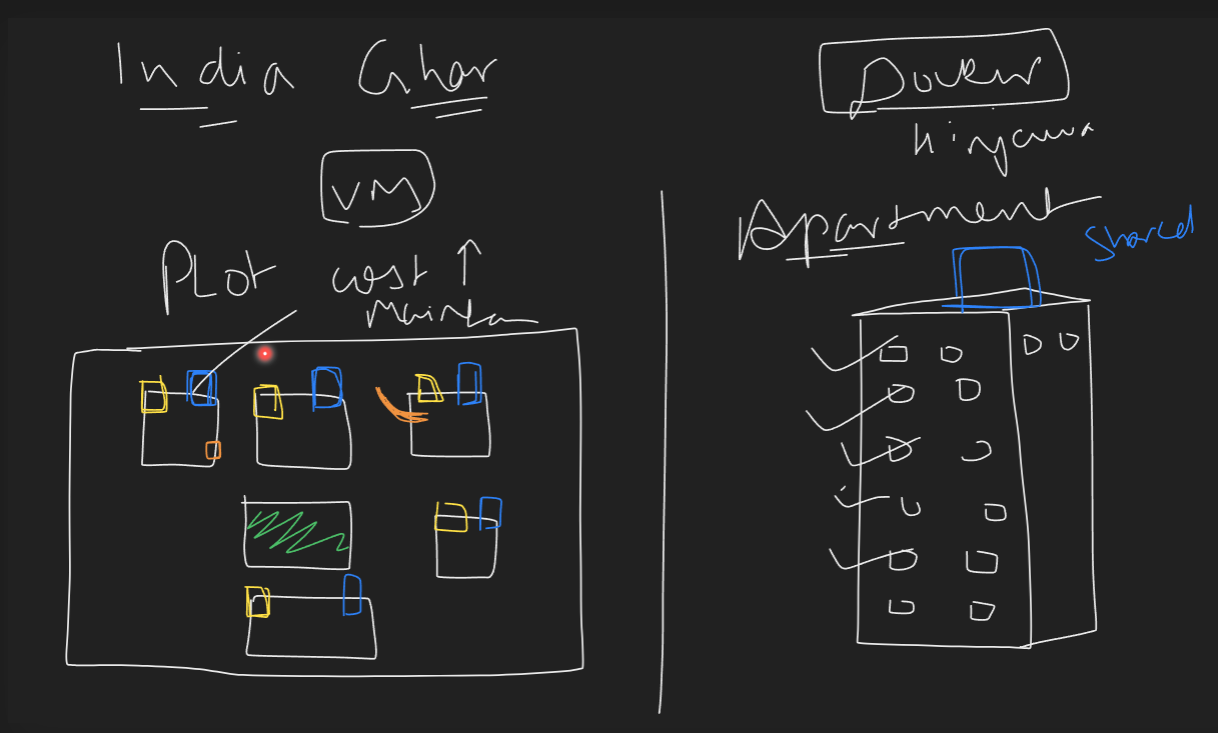
Bungalow (Virtual Machines)
Resource Usage: Each bungalow is like a virtual machine (VM). It has its own kitchen, bathroom, and living spaces, consuming more resources (CPU, memory, storage).
Boot Time: Just like it takes time to build and set up a bungalow, VMs take longer to start because they need to boot an entire operating system.
Isolation: Each bungalow is completely isolated from the others, providing strong isolation.
Portability: Moving a bungalow to a different location is difficult, similar to how VMs are less portable because they are tied to the hypervisor and underlying hardware.
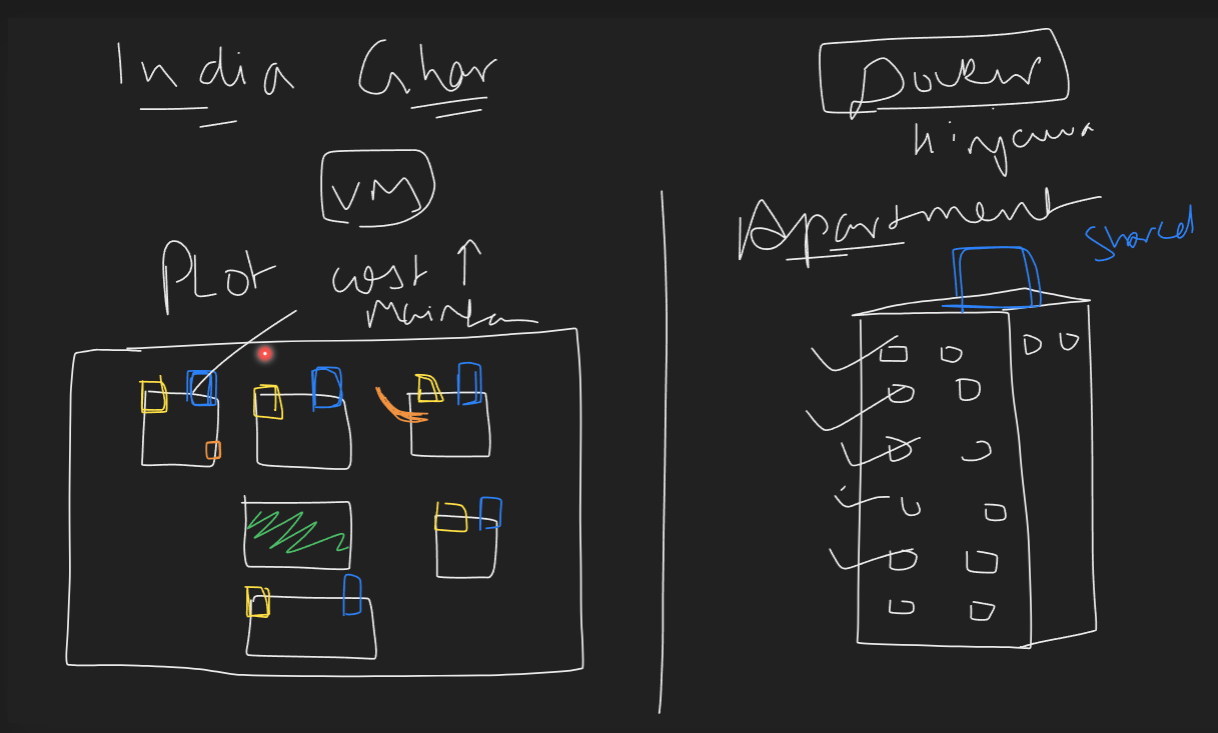
Docker (Containers)
Resource Usage: Containers share the host OS kernel, making them more lightweight and efficient in terms of resource usage.
Boot Time: Containers start almost instantly because they do not need to boot an entire OS.
Isolation: Containers provide process-level isolation, which is sufficient for most applications but not as strong as VMs.
Portability: Containers are highly portable and can run on any system that supports Docker, regardless of the underlying hardware.
In summary, Docker is more efficient and portable compared to using virtual machines with VirtualBox. While VMs provide stronger isolation, Docker's lightweight nature and faster startup times make it a better choice for many development and deployment scenarios.
Imagine a society with a large bungalow and several apartments to understand how Docker works with the operating system and resources.
Apartments (Docker Containers)
Resource Usage: Apartments share common resources like the building's foundation, walls, and roof, similar to how Docker containers share the host OS kernel. This makes them more lightweight and efficient.
Boot Time: Just as you can quickly move into an apartment because the building is already there, containers start almost instantly because they do not need to boot an entire OS.
Isolation: Each apartment is isolated from the others, providing sufficient privacy and separation, similar to how containers provide process-level isolation.
Portability: Apartments can be easily rented out or moved into different buildings, just like containers are highly portable and can run on any system that supports Docker.
What is docker engine ?
The Docker Engine is the core component of Docker, responsible for managing containers. It consists of three main parts:
Docker Daemon (dockerd): This is the background service that manages Docker objects like images, containers, networks, and volumes. It listens for Docker API requests and performs the necessary actions.
Docker CLI (Command Line Interface): This is the tool users interact with to issue commands to the Docker Daemon. It simplifies container management by allowing users to run commands like
docker run,docker build, anddocker pull.containerd: This is a container runtime that the Docker Daemon uses to manage the lifecycle of containers. It handles tasks such as starting, stopping, and managing containers.
Together, these components ensure efficient and consistent container management.
Use the docker run command to start a new container and interact with it through the command line. [Hint: docker run hello-world]
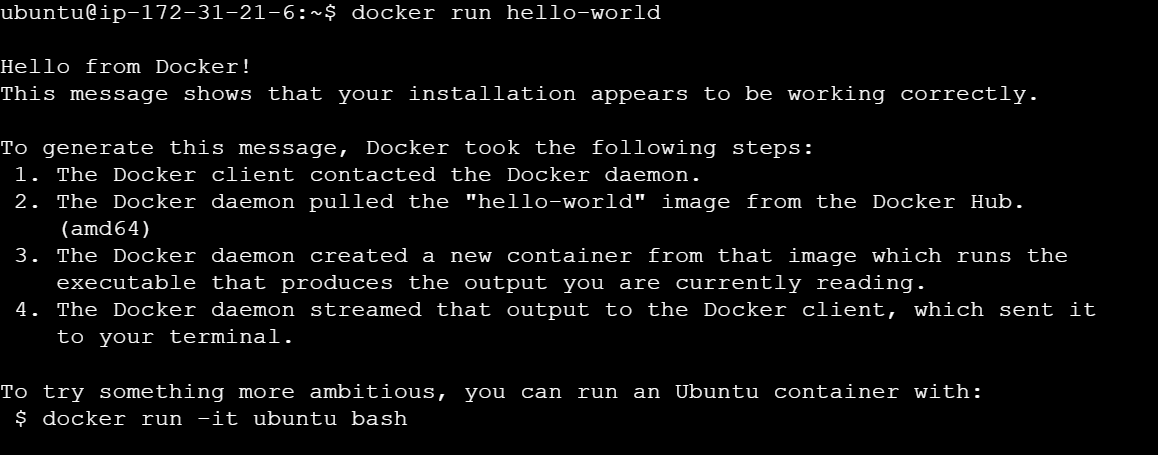
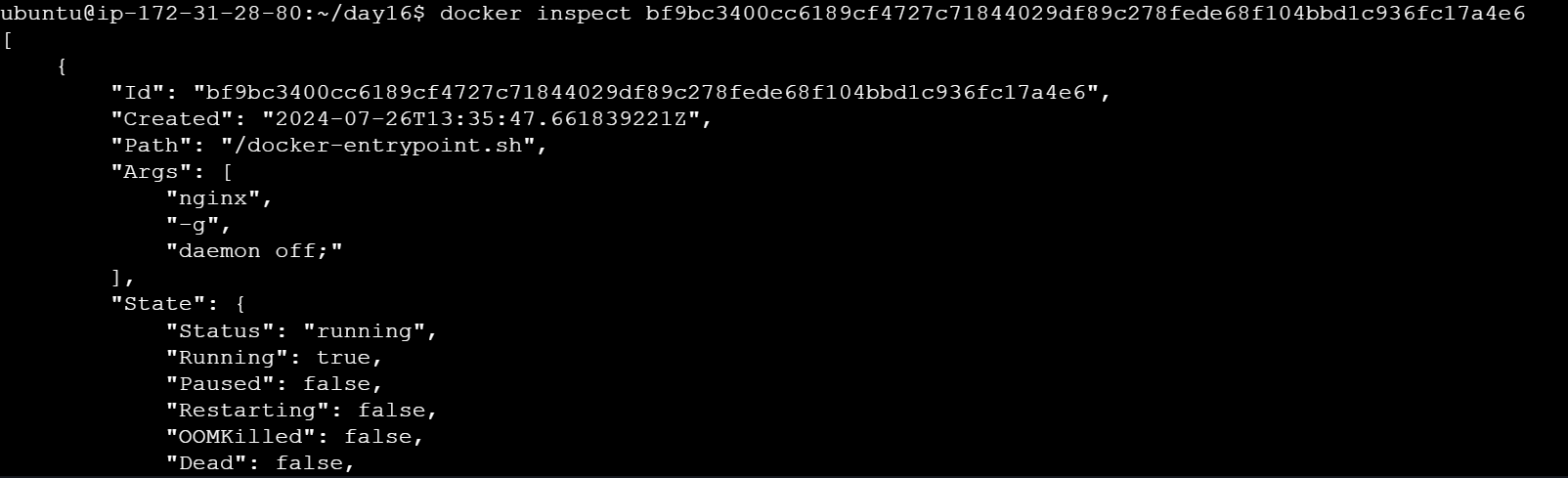
Use the docker inspect command to view detailed information about a container or image.
# Inspecting a container
docker inspect <container_id_or_name>

# Inspecting an image
docker inspect <image_id_or_name>
Use the docker port command to list the port mappings for a container.
# List port mappings for a container
docker port <container_id_or_name>

Use the docker stats command to view resource usage statistics for one or more containers.
# View resource usage statistics for all running containers
docker stats

# View resource usage statistics for a specific container
docker stats <container_id_or_name>

Use the docker top command to view the processes running inside a container.
# View processes running inside a container
docker top <container_id_or_name>

Use the docker save command to save an image to a tar archive.
# Save an image to a tar archive
docker save -o <path_to_tar_archive> <image_id_or_name>

Use the docker load command to load an image from a tar archive.
# Load an image from a tar archive
docker load -i <path_to_tar_archive>

Thank you for reading!
© 2024 Anand Raval. All rights reserved.


